
AI Drawing : A Five-Step Process for Beautiful Illustrations
Using AI drawing black-and-white illustrations

Here is an example prompts for you creating Hummingbird🎁
There are Five steps:
Step 1
First, open the Fastflux software on the web. They offer a free version online.
https://fastfluxai.com/
or https://www.fastflux.ai/
If you find it very useful after trying it out, you can subscribe to their software.
You can visit their website, where there are many language settings available. After selecting your preferred language, click the “Try Now” button, and a very simple interface will appear.
(This interface is fantastic; it’s super simple and easy on the eyes.)
Step 2
Open an Excel or text file because we will save the AI drawing commands we want to keep.
Now go to ChatGPT or Perplexity and tell the AI what kind of image you want to draw. Ask ChatGPT for 10 descriptive prompts for images, then select three that you think are most suitable and copy them.
Step 3
At this point, you can enter the drawing prompts in the fill area on the screen. Click “Run,” and an image will be generated.
If you like this image, there is a download button in the lower right corner to save it to your folder. The file name should be *webp*.
Step 4
We can use Canva, Photoshop, or other drawing conversion software to convert the file into a JPG or any desired image format.
Step 5
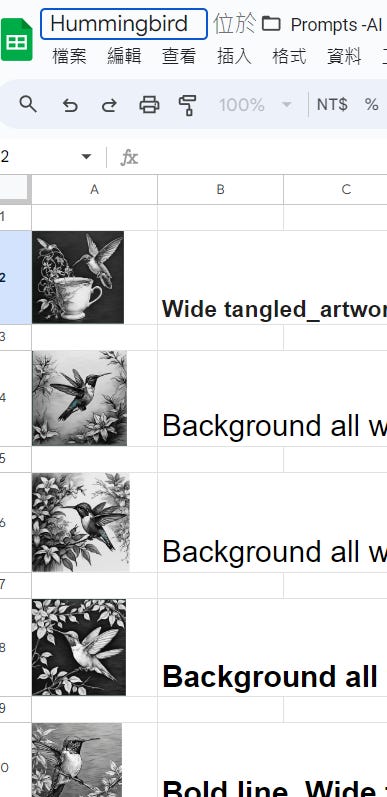
We need to paste the language commands from earlier into our Excel or other document. Remember to also place the images next to the text. This way, when we want to generate similar images next time, we can refer back to the images for guidance.
Experience Using *Fastflux.ai* for a Week:
When I tried using AI drawing software to generate my illustrations, it served as a reference image tool that quickly produced results and conveniently converted language commands.
There is almost no time lag (except during certain late-night hours when it may suddenly stop; refreshing usually resolves this!). It has consistently produced images that I am very satisfied with.
Among the AI drawing software I have used, this command software is currently the fastest, most convenient, and offers the best value for performance. The key point is that it is currently (as of September 19, 2024) a free and user-friendly AI drawing tool.
🍀 Tips for Writing AI Drawing Commands:
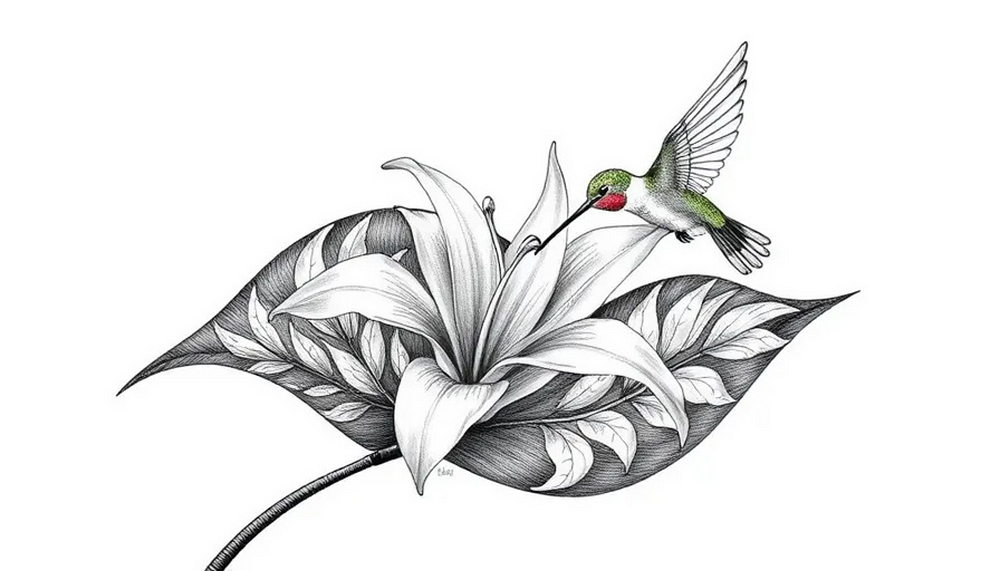
When using AI drawing software, changing the main subject of your drawing command will yield different images.
For example, if we want a black-and-white background, we should specify our desired background first and then add our characters (the main subjects). Next, continue using “+” to create the verbs we need.
For instance, if we want a cat and a dog standing by a river, we should specify: let them stand (or lie down or fly in the sky).
Next is creating the environment: have this cat and dog standing ” +” by the river or at a flowing seaside or floating in a misty sky.
Then we need to add some adjectives to stack emotional descriptors for changes.
For example, if we want the kitten and puppy to smile or cry, we add these emotional adjectives.
By varying these subjects, verbs, adjectives, and environmental descriptors, all images will change accordingly.
You might enter a creative flow during this process and enjoy it so much that you lose track of time.
It’s essential to set a time limit for your creative sessions because you might forget how long you’ve been creating.
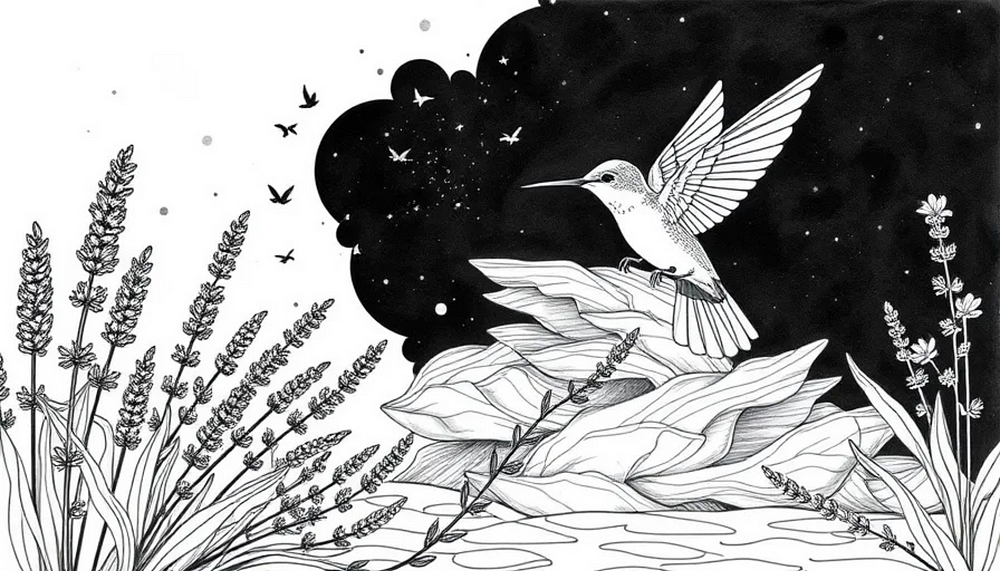
Here is an example prompts for you creating Hummingbird🎁
As long as fill the price in “0” , you could take it for free of charge.🎁
Background all white_Wide tangled_artworks black__no_word__middle_white_hummingbird_white_leave+background is all white